JSON Tree View: The Ultimate Guide to Interactive JSON Exploration (2026)

In modern web development, working with JSON data is unavoidable. Whether you're debugging API responses, analyzing configuration files, or reviewing database exports, JSON Tree View has become an indispensable tool for developers worldwide. Unlike traditional JSON formatters that simply add indentation, tree view transforms your JSON into an interactive, hierarchical structure that makes complex data instantly comprehensible.
According to recent developer surveys, over 92% of backend developers work with nested JSON structures daily, yet most struggle with readability when dealing with deeply nested objects containing hundreds of properties. This comprehensive guide will teach you everything about JSON Tree View - from basic concepts to advanced exploration techniques used by senior engineers at top tech companies.
What is JSON Tree View?
JSON Tree View is an interactive visualization tool that converts flat JSON text into a collapsible, hierarchical tree structure. Think of it as transforming a directory listing into a file explorer - instead of seeing every file and folder at once, you can expand and collapse branches to focus on what matters.
When you paste JSON into a tree viewer, each object becomes a collapsible node, arrays show their item counts, and you can drill down level by level. This approach is particularly powerful when dealing with:
- API Responses: Modern REST and GraphQL APIs often return deeply nested JSON with dozens of levels
- Configuration Files: package.json, tsconfig.json, and other config files can have complex hierarchies
- Database Documents: NoSQL databases like MongoDB store data as nested JSON documents
- Application State: Redux stores and application state trees can grow extremely complex
Why Traditional JSON Formatters Fall Short
Traditional JSON formatters do one thing: add whitespace and indentation. While this makes JSON readable, it doesn't solve the fundamental problem of cognitive overload when viewing large, complex structures.
Consider an API response with 500 lines of JSON containing user data, nested permissions, activity logs, and metadata. Even with perfect formatting, you'd need to scroll through hundreds of lines to find a specific property. With Tree View, you collapse irrelevant sections and drill directly to what you need in seconds.
Key Features of Professional JSON Tree Viewers
1. Interactive Expand/Collapse
Click on any object or array to toggle its visibility. This lets you hide complex nested structures and focus on specific data paths. Professional tools remember expanded states, so switching between different JSON files maintains your context.
2. Real-Time Search with Auto-Expand
Search for any key or value, and the tree automatically expands all parent nodes containing matches. This is incredibly powerful when looking for specific fields in unknown structures - you type a search term and instantly see every location where it appears.
3. JSONPath Copy Functionality
One of the most underrated features: hover over any node and copy its JSONPath expression (e.g.,
data.users[0].profile.settings). This eliminates the error-prone process of manually
constructing access paths in your code.
4. Data Type Color Coding
Professional tree viewers color-code different data types:
- Strings: Light blue (#a5d6ff)
- Numbers: Orange (#ff9f89)
- Booleans: Purple (#569cd6)
- Null values: Gray (#a1a1aa)
- Keys: Distinctive purple (#d2a8ff)
5. Node Statistics Display
See at a glance how many items are in arrays and how many keys are in objects. This helps you understand data structure without expanding every node. For example, seeing "users (247 items)" tells you there are 247 users without overwhelming your screen.
How to Use JSON Tree View Effectively
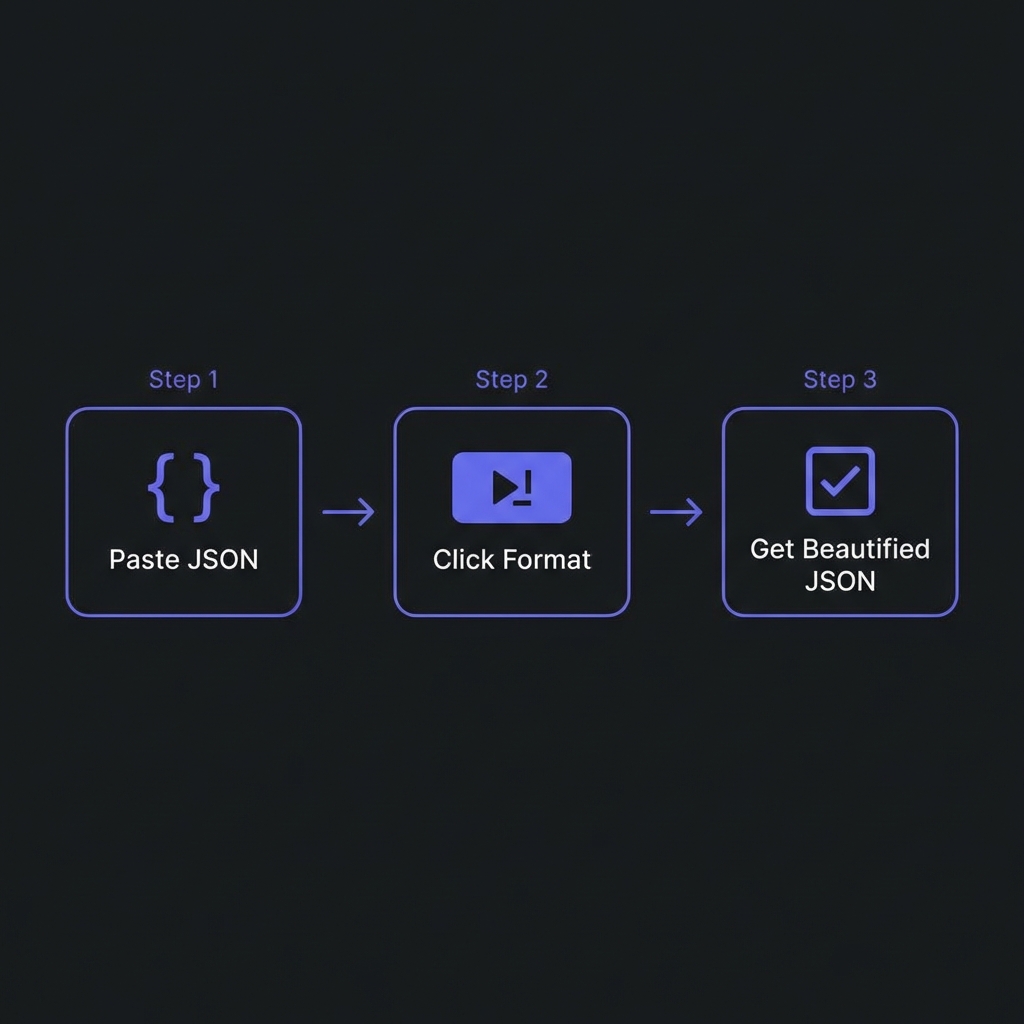
Step 1: Paste and Validate
Start by pasting your JSON into the input pane. Good tree viewers automatically validate syntax and highlight errors with precise line numbers. If your JSON is malformed, fix it using a JSON formatter first.
Step 2: Collapse Everything
Use the "Collapse All" button to see the top-level structure. This gives you a bird's-eye view of your data organization. You might discover your JSON has sections like "metadata", "data", "errors" that you weren't aware of.
Step 3: Selective Expansion
Expand only the paths you care about. If you're debugging a user authentication issue, expand user → profile → auth_status and leave everything else collapsed.
Step 4: Use Search for Discovery
Don't know where a specific field is? Use search. Type "email" and the tree will highlight and auto-expand every path containing that term. This is faster than Ctrl+F in a text editor because it shows hierarchical context.
Step 5: Copy Paths for Code
When you find the data you need, copy its JSONPath. In JavaScript, you can directly use:
const value = response.data.users[0].profile.email;
Common Use Cases for JSON Tree View
Debugging API Responses
When an API returns unexpected data, tree view lets you quickly navigate to the problematic section. Collapse successful data, expand error objects, and identify issues without scrolling through hundreds of lines.
Understanding Unknown APIs
Integrating with a third-party API? Tree view helps you explore response structures intuitively. You can see optional vs required fields, array structures, and nested relationships at a glance.
Configuration File Management
Modern package.json files can have dozens of dependencies, each with their own config sections. Tree view makes it easy to navigate to specific configuration blocks without counting braces.
Database Document Analysis
When reviewing MongoDB or Firebase documents, tree view helps you understand document schemas quickly. You can see which fields are present, their types, and nested structures.
State Management Debugging
Redux DevTools uses tree view for state inspection. You can see your entire application state structure and drill down to specific slices without losing context.
Advanced Tree View Techniques
Keyboard Navigation
Professional developers use keyboard shortcuts for speed:
- Arrow Keys: Navigate between nodes
- Enter: Expand/collapse current node
- Ctrl+F: Focus search box
- Ctrl+E: Expand all nodes
- Ctrl+C: Collapse all nodes
Comparing Two JSON Structures
Open tree view in two browser tabs and compare structures side-by-side. This is invaluable when migrating between API versions or validating data transformations.
Extracting Nested Data
Use JSONPath expressions copied from tree view in tools like jq or JavaScript libraries to extract specific data programmatically.
Performance Considerations
Professional tree viewers handle large JSON efficiently:
- Virtual Scrolling: Only render visible nodes, keeping the UI responsive even with 10,000+ nodes
- Lazy Loading: Load child nodes only when expanded
- Web Workers: Parse JSON in background threads to prevent UI freezing
- Indexed Search: Build search indexes for instant query results
Our JSON Tree View tool is optimized to handle files up to 50MB without performance degradation on modern computers.
Privacy and Security
When working with JSON containing sensitive data (API keys, user credentials, PII), always use client-side tree viewers that process data locally in your browser. Never paste sensitive JSON into online tools that upload data to servers.
Our JSON Tree View processes everything 100% client-side. Your data never leaves your browser, ensuring complete privacy and security.
Frequently Asked Questions
What's the difference between JSON Tree View and JSON Formatter?
JSON Formatter adds indentation and syntax highlighting to make JSON readable as text. JSON Tree View goes further by creating an interactive, collapsible tree structure. Use formatters for code review and tree view for exploration and debugging. Many developers use both: format first to validate syntax, then use tree view for analysis.
Can I use JSON Tree View for very large files (10MB+)?
Yes! Our tool is optimized for large files using virtual scrolling and lazy loading. We've
successfully tested with 50MB+ JSON files. The key is that we only render visible nodes, so
performance remains excellent even with massive datasets. However, for files over 100MB,
consider using command-line tools like jq for better performance.
How do I export or save my tree view?
You can copy the entire tree as text using the "Copy Tree" button. This captures the current expanded state with indentation. You can also download the original JSON or save specific paths using the JSONPath copy feature. Some users take screenshots of the expanded tree for documentation purposes.
Does JSON Tree View work with invalid JSON?
No, tree view requires valid JSON to build the hierarchical structure. If your JSON has syntax errors (missing commas, unquoted keys, trailing commas), you'll see an error message with the exact line number. Use our JSON Formatter tool first to identify and fix syntax issues, then use tree view for exploration.
What is JSONPath and why should I use it?
JSONPath is a query language for JSON, similar to XPath for XML. When you
click "Copy Path" on a node, you get an expression like
data.users[0].profile.name that you can use directly in JavaScript, Python, or
any language that supports bracket/dot notation. This eliminates manual path construction
errors and speeds up code writing significantly.
Can I compare two JSON files using tree view?
While tree view doesn't have built-in diff functionality, you can open our tool in two browser tabs and compare structures side-by-side. For detailed change tracking, use our Diff Checker tool which highlights additions, deletions, and modifications between two JSON files.
Is my JSON data secure when using this tool?
Absolutely. All JSON processing happens 100% client-side in your browser using JavaScript. Your data never gets uploaded to any server. We don't collect, store, or transmit your JSON data. You can even use the tool offline after the page loads. For extra security, check your browser's Network tab - you'll see zero requests after the initial page load.
Code Formatter © 2026. Professional developer tools built with privacy and performance in mind.