You're debugging at 2 AM. You paste a massive API response into your code editor, hit save,
and suddenly your screen explodes with red:
Uncaught SyntaxError: Unexpected token } in JSON at position 432.
This error message has haunted every developer at least once. According to Stack Overflow's 2025
Developer Survey, JSON parsing errors rank in the top 5 most common programming
mistakes, costing development teams thousands of hours annually in debugging time.
JSON (JavaScript Object Notation) looks like JavaScript, but it's fundamentally different. It's
a strict, language-agnostic data format with zero tolerance for syntax errors. One
misplaced comma can break your entire application.
In this comprehensive guide, we'll go beyond surface-level advice like "check your commas." You'll learn
the exact parsing rules that JSON parsers enforce, advanced debugging techniques used by senior
engineers, and how to prevent these errors from ever happening again.
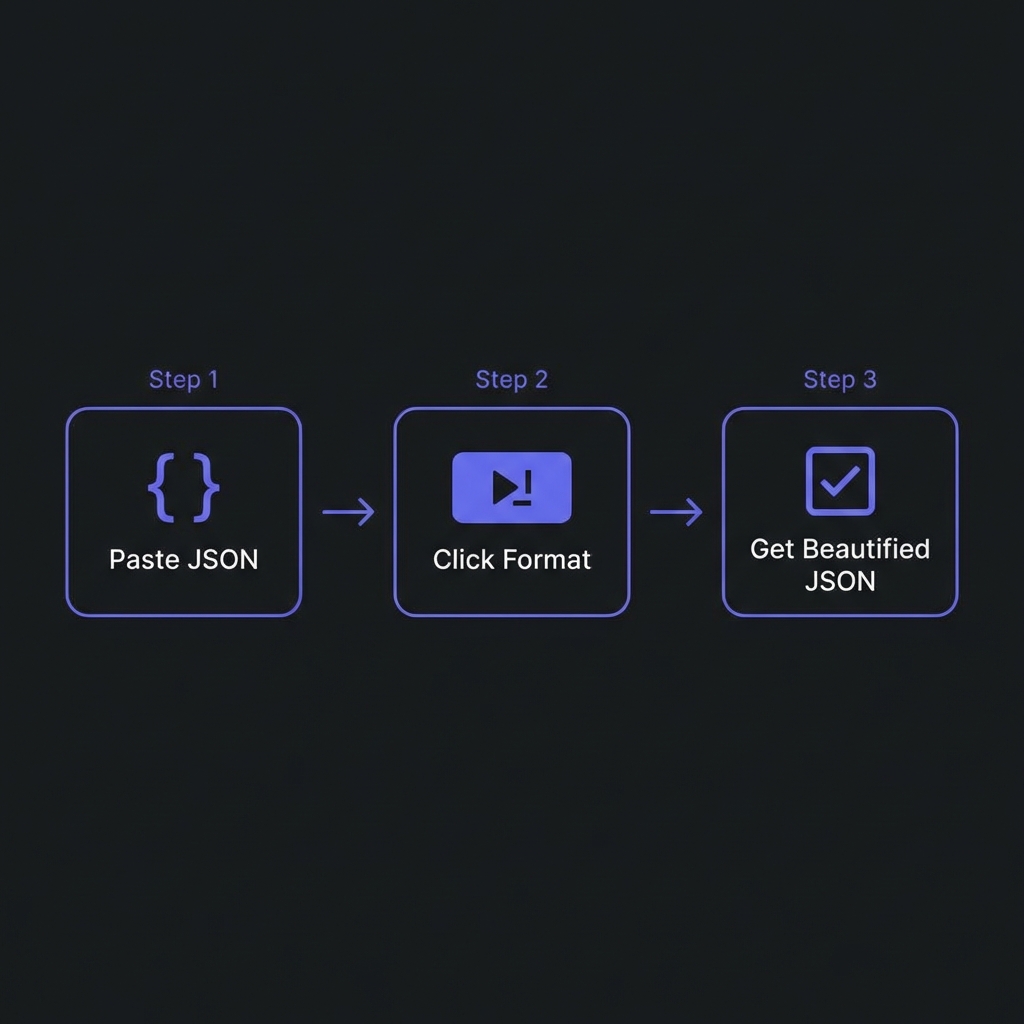
How to Fix JSON - Simple 3-step workflow
Why JSON is So Strict (RFC 8259 Explained)
JSON was created by Douglas Crockford in the early 2000s as a lightweight alternative to XML. The design
philosophy was simple: create a format so strict that any programming language (Python,
Java, C++, Ruby) could parse it safely without ambiguity.
The specification, codified in RFC 8259, deliberately removed features that could cause
confusion:
No Comments: Comments create parsing ambiguity across languages
No Trailing Commas: Prevents accidental array/object syntax errors
No Undefined: Only supports null, numbers, strings, booleans, arrays, and objects
Strict Quoting: Only double quotes accepted for keys and string values
No Functions: JSON is data, not executable code
This strictness makes JSON incredibly fast to parse (modern parsers can process gigabytes per second) and
prevents entire classes of security vulnerabilities like code injection attacks.
Pro Tip: JSON vs JavaScript Objects
JavaScript objects are lenient (accept single quotes, missing quotes on keys, trailing commas).
JSON is strict. Always use JSON.stringify() when sending data from JavaScript to
ensure standards compliance.
The 5 Most Common JSON Syntax Errors
1. The Trailing Comma Death Trap
Modern JavaScript (ES2017+) allows trailing commas in objects and arrays. This feature makes code easier
to maintain�you can add new items without touching the previous line. But JSON parsers reject them
instantly.
Why This Matters: Config files (.eslintrc, package.json, tsconfig.json) are often
written by hand. One trailing comma can prevent your entire build pipeline from running.
2. Comments Are Absolutely Forbidden
Developers naturally want to document their data structures. But standard JSON has no comment syntax.
Adding // or /* */ will cause immediate parse failure.
Alternatives:
Use JSON5 (superset of JSON that allows comments)
Use YAML for configuration files (supports native comments)
Add a "_comment" key with a string value (hacky but works)
Strip comments programmatically before parsing
3. Missing or Extra Commas
Forgetting a comma between key-value pairs or adding an extra comma are both fatal errors. JSON parsers
don't attempt to "guess" your intent.
Memory Trick: If you can remember one rule, remember this: "JSON = Java Script
Object Notation with Double quotes"
? Auto-Fix Quote Errors Instantly
Stop manually replacing quotes. Our JSON Formatter automatically converts single quotes to double
quotes, validates syntax, and beautifies your code in one click.
The Hidden Character Problem (Copy-Paste Nightmare)
You've checked everything. The syntax looks perfect. But JSON.parse() still throws an error.
Welcome to the world of invisible characters.
When copying JSON from Slack messages, JIRA tickets, Microsoft Word, or PDF documents, you often
inadvertently copy invisible Unicode characters that break parsers:
Common Invisible Characters
Smart Quotes (U+201C, U+201D): Curly quotes " and "
instead of straight quotes "
Zero-Width Space (U+200B): Completely invisible, often appears at line breaks
Non-Breaking Space (U+00A0): Looks like a space but has different encoding
Byte Order Mark (U+FEFF): Hidden at the start of files saved in certain encodings
Em Dash (U+2014): Looks like a minus sign but isn't recognized
Real-World Example from Production
A developer copied API documentation from Confluence. The JSON looked perfect but failed parsing
for 3 hours. The culprit? A zero-width space (U+200B) was hidden after every colon. Only visible
after running hexdump on the file.
How to Detect Hidden Characters
VS Code: Settings ? Text Editor ? Enable "Render Control Characters"
Chrome DevTools: Paste JSON into Console, inspect string literals
character-by-character
Command Line:cat file.json | od -c shows all character codes
Online Tools: Use Code Formatter's JSON Validator which highlights invisible
characters
Advanced Debugging Techniques
1. Binary Search for Error Location
When dealing with massive JSON files (1000+ lines), finding the error manually is impossible. Use binary
search:
Binary Search Strategy
// Step 1: Delete the second half of the JSON// If error disappears ? error was in second half// If error persists ? error is in first half// Step 2: Take the "bad" half and repeat// Within 10 iterations, you'll find any error in a 10,000 line file
2. Using jq for Precision Debugging
jq is a command-line JSON processor that provides detailed error messages with exact line
and column numbers:
jq Advanced Usage
$ cat broken.json | jq .
parse error: Expected separator between values at line 5, column 12# Validate without output
$ jq empty broken.json
# Pretty-print valid JSON
$ jq . valid.json > formatted.json
3. Browser DevTools JSON Debugging
Chrome and Firefox have built-in JSON parsers that provide interactive error highlighting:
Open DevTools Console (F12)
Type: JSON.parse('your json here')
Chrome will show exact error position with visual markers
Real-World JSON Error Scenarios
Scenario 1: API Response Parsing
You're fetching data from a third-party API. Sometimes they return error messages as HTML instead of
JSON, breaking your response.json() call.
Solution: Always validate Content-Type header before parsing:
Safe API Parsing
const response = await fetch('/api/data');
const contentType = response.headers.get('content-type');

if (!contentType || !contentType.includes('application/json')) {
  throw new Error('Server returned non-JSON response');
}

const data = await response.json();
Scenario 2: User-Uploaded Config Files
Your app allows users to upload JSON configuration. They inevitably upload invalid JSON.
Solution: Implement graceful error handling with helpful messages:
User-Friendly Error Handling
try {
  const config = JSON.parse(userInput);
} catch (error) {
  if (error instanceof SyntaxError) {
    alert(`Invalid JSON at position ${error.message.match(/\d+/)?.[0] || 'unknown'}`);
  }
}
Browsers cache API responses marked as valid JSON. If your endpoint occasionally returns malformed JSON,
caching breaks, increasing server load.
2. Memory Leaks
Some parsers don't release memory properly when encountering errors, especially in long-running Node.js
processes.
3. Retry Storms
Automatic retry logic can create thousands of failed parse attempts if the source data is corrupted,
DDoS-ing your own servers.
Performance Benchmark
Valid JSON parses at ~50MB/sec in V8 engine. JSON with syntax errors can slow parsing by 100x
because the parser must backtrack to find the exact error location.
Best Practices for Bulletproof JSON
1. Never Hand-Write Production JSON
Always generate JSON programmatically using JSON.stringify(). If you must write JSON
manually, use a linter.
2. Implement Schema Validation
Use JSON Schema or TypeScript to validate structure before parsing:
TypeScript JSON Validation
interface User {
  name: string;
  email: string;
  age: number;
}

const data: User = JSON.parse(apiResponse);
3. Set Up Pre-Commit Hooks
Use tools like ESLint or Prettier to validate all JSON files before committing to version control.
4. Test Edge Cases
Always test with:
Empty JSON {}
Single-character strings {"a":"b"}
Unicode characters {"emoji":"??"}
Large numbers {"id":9007199254740992}
?? Validate JSON Like a Pro
Stop debugging JSON errors manually. Code Formatter's JSON Validator catches syntax errors,
formatting issues, and invisible characters instantly�with detailed error messages pointing to exact
line numbers.
No. JSON is a pure data-interchange format, not a programming language. It only
supports six data types: String, Number, Boolean, Null, Array, and Object. Functions, undefined
values, symbols, and Date objects are not allowed. If you need to serialize functions, use
JavaScript's eval() (dangerous) or store code as strings and execute later.
Why does JSON.parse() fail silently on large numbers?
+
JavaScript's Number type uses 64-bit floating-point (IEEE 754), which can only safely represent
integers up to 2^53 - 1 (9,007,199,254,740,991). If your JSON contains database IDs
larger than this (like Twitter snowflake IDs), JavaScript will silently round them, corrupting
your data. Solution: Always store large integers as strings in JSON:
{"id": "123456789012345678"}
What's the difference between JSON and JSON5?
+
JSON5 is a superset of JSON that allows JavaScript-like features: single
quotes, unquoted keys, trailing commas, comments, hexadecimal numbers, and more. It's designed
for config files where developer experience matters. However, standard JSON.parse()
will reject JSON5 syntax�you need a special parser like the json5 npm package. Use
JSON5 for .eslintrc, .babelrc, but stick to standard JSON for APIs.
How do I handle JSON with duplicate keys?
+
Technically, RFC 8259 says duplicate keys should be avoided but doesn't forbid them. Different
parsers handle duplicates differently: JavaScript's JSON.parse() takes the
last value, Python's json module takes the last value, but some strict parsers
reject duplicates entirely. Best practice: Never intentionally use duplicate
keys. If you receive JSON with duplicates from an API, restructure it into an array.
Can JSON represent circular references?
+
No. JSON is a tree structure. If you try to JSON.stringify() an
object with circular references (e.g., obj.self = obj), you'll get:
TypeError: Converting circular structure to JSON. Solutions include: (1) Using a
library like flatted that serializes circular structures with indices, (2) Manually
breaking circular references before stringifying, or (3) Using a custom replacer function.
Why is my formatted JSON still showing errors?
+
Formatters like Prettier or VS Code can make invalid JSON look correct by adding proper
indentation, but they can't fix syntax errors like trailing commas or missing quotes. Use a
validator first (like Code Formatter's JSON tool), which will tell you exactly
what's wrong, then format. Also check for: BOM (Byte Order Mark) at file start, file
encoding (must be UTF-8), and hidden characters.
Conclusion: Master JSON, Master Your APIs
JSON parsing errors are frustrating, but they're also preventable. By understanding the strict rules of
RFC 8259, using the right debugging tools, and following best practices like programmatic generation and
schema validation, you can eliminate these errors from your workflow.
Remember the golden rules:
Always use double quotes for keys and string values
Never use trailing commas or comments in standard JSON
Watch for invisible characters when copy-pasting
Validate with tools before deploying to production
Store large integers and dates as strings
With these techniques, you'll transform from spending hours debugging cryptic error messages to
confidently handling any JSON parsing scenario. Your future self will thank you.